mirror of
https://github.com/NohamR/knowledge-kit.git
synced 2026-05-24 20:00:37 +00:00

92 lines
4.8 KiB
Markdown
92 lines
4.8 KiB
Markdown
# 工程大小优化之图片资源
|
||
|
||
> 一点点iOS项目本身功能较多,导致应用体积也比较大。一个Xcode工程下图片资源占用了很大的空间,且如果有些App需要一键换肤功能,呵呵,不知道得做多少图片。每套图片还需要设置1x@,2x@,3x@等
|
||
|
||
## 简介
|
||
|
||
IconFont技术起源于Web领域的Web Font技术。随着时间的推移,网页设计越来越漂亮。但是电脑预装的字体远远无法满足设计者的要求,于是Web Font技术诞生了。一个英文字库并不大,通过网络下载字体,完成网页的显示。有了Web Font技术,大大提升了设计师的发挥空间。
|
||
|
||
网页设计中图标需要适配多个分辨率,每个图标需要占用一次网络请求。于是有人想到了用Web Font的方法来解决这两个问题,就是IconFont技术。将矢量的图标做成字体,一次网络请求就够了,可以保真缩放。解决这个问题的另一个方式是图片拼合的Sprite图。
|
||
|
||
Web领域使用IconFont类似的技术已经多年,当我在15年接触BootStrap的时候Font Awesome技术大行其道。最近IconFont技术在iOS图片资源方面得以应用,最近有点时间自己研究整理了一番,在此记录学习点滴。
|
||
|
||
## 优点
|
||
|
||
* 减小体积,字体文件比图片要小
|
||
* 图标保真缩放,解决2x/3x乃至将来的nx图问题
|
||
* 方便更改颜色大小,图片复用
|
||
|
||
## 缺点
|
||
|
||
* 只适用于
|
||
`纯色icon`
|
||
* 使用unicode字符难以理解
|
||
* 需要维护字体库
|
||
|
||
网上说了一大堆如何制作IconFont的方法,在此不做讨论。
|
||
|
||
## 我们说说怎么用
|
||
|
||
1. 首先选取一些有丰富资源的网站,我使用阿里的IconFont多年,其他的没去研究,所以此处直接使用阿里的产品。地址:[http://www.iconfont.cn/plus](http://www.iconfont.cn/plus)
|
||
|
||
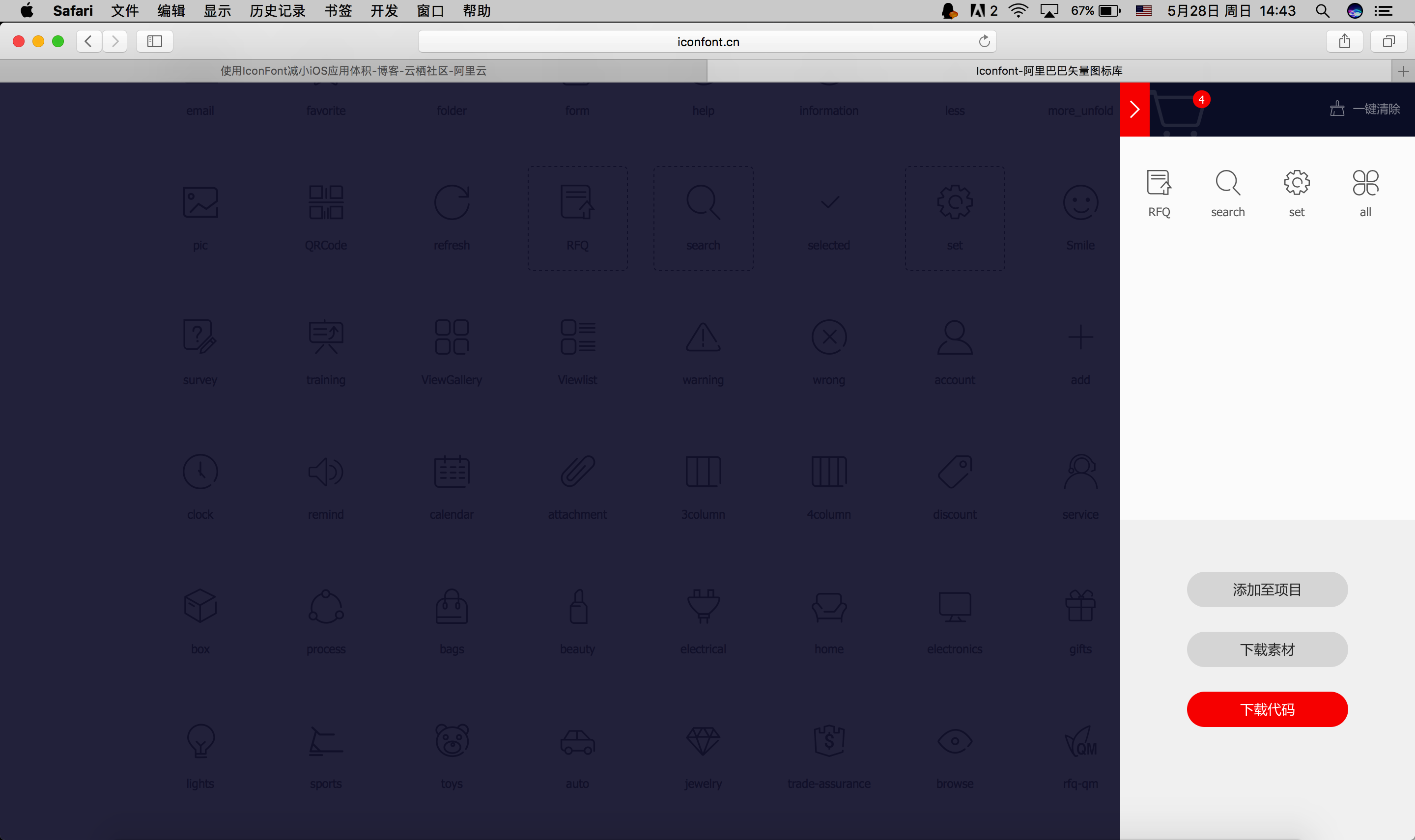
2. 打开网站在线挑选好合适的图标加入购物车,如图
|
||
|
||
|
||
1. 选择好之后在购物车查看,然后点击下载代码
|
||
|
||
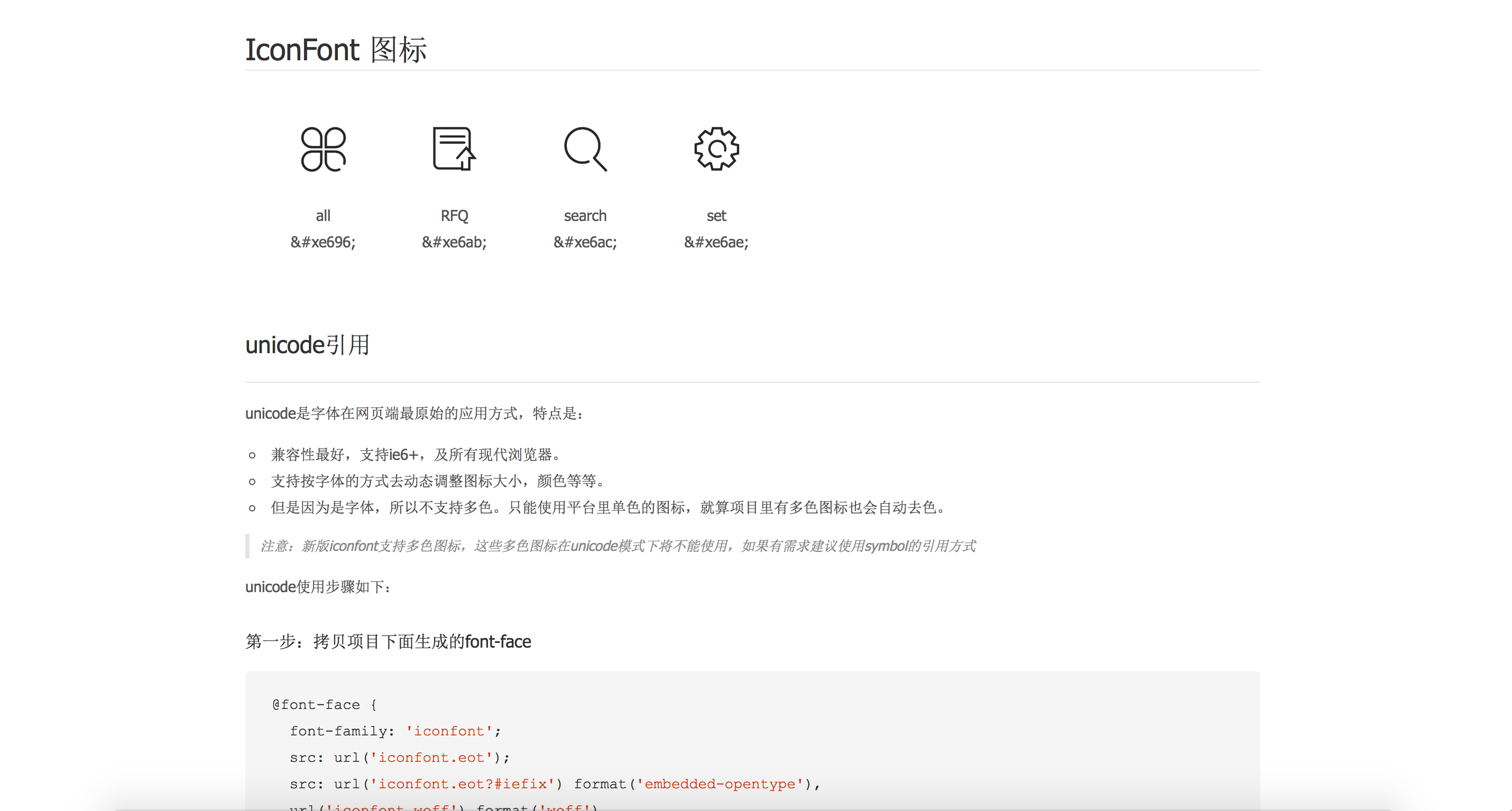
2. 打开下载好的文件,其机构如下,我们在iOS项目开发过程中使用unicode的形式使用IconFont,所以打开demo\_unicode.html
|
||
|
||
|
||
|
||
**注意:** 创建 UIFont 使用的是字体名,而不是文件名;文本值为 8 位的 Unicode 字符,我们可以打开 demo.html 查找每个图标所对应的 HTML 实体 Unicode 码,比如: "店" 对应的 HTML 实体 Unicode 码为:0x3439 转换后为:\U00003439 就是将 0x 替换为 \U 中间用 0 填补满长度为 8 个字符
|
||
|
||
# Xcode中使用IconFont
|
||
|
||
初步尝试使用
|
||
|
||
1. 首先看看如何简单实用IconFont
|
||
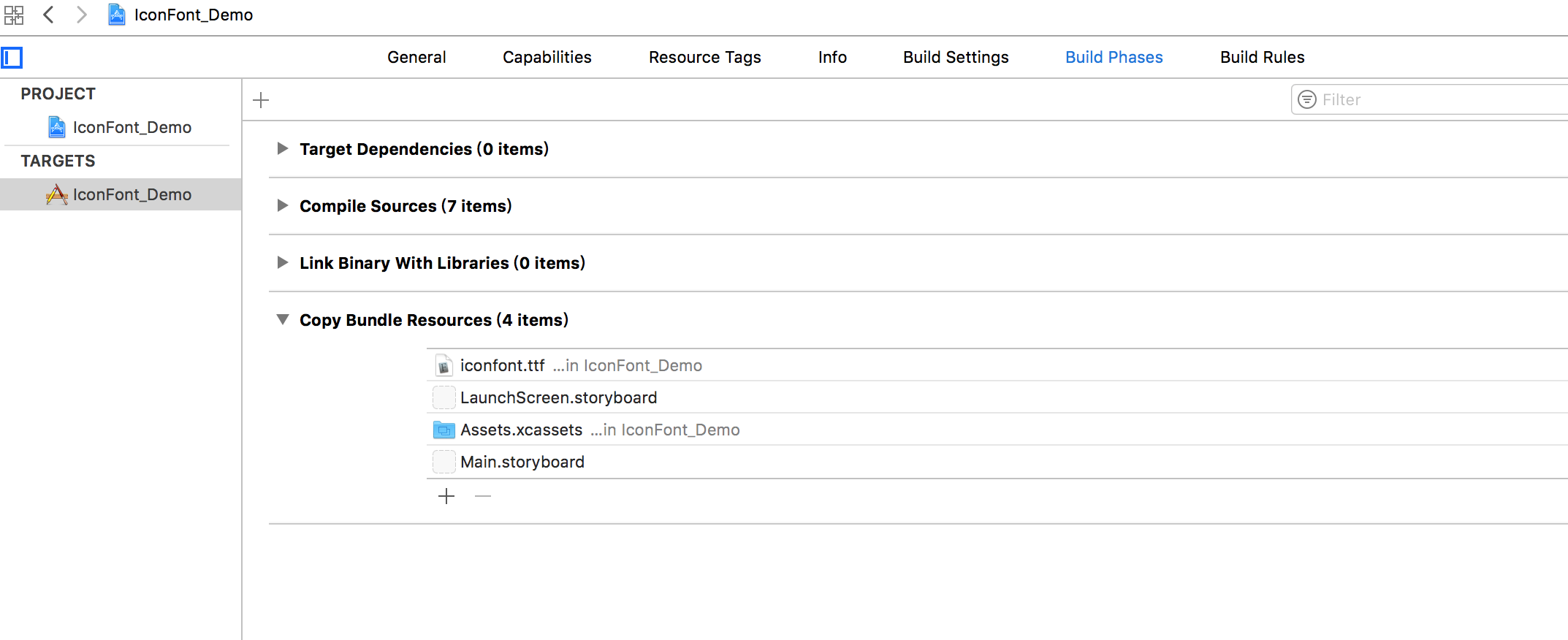
2. 首先将下载好的文件夹中的 **iconfont.ttf** 加入到Xcode工程中,确保加入成功在Build检查
|
||
|
||
|
||
|
||
1. 怎么用?
|
||
|
||
```Objective-c
|
||
|
||
NSMutableAttributedString *attributedStr = [[NSMutableAttributedString alloc] initWithString:@"\U0000e696 \U0000e6ab \U0000e6ac \U0000e6ae"];
|
||
[attributedStr addAttribute:NSForegroundColorAttributeName value:[UIColor redColor] range:NSMakeRange(0, 1)];
|
||
[attributedStr addAttribute:NSForegroundColorAttributeName value:[UIColor orangeColor] range:NSMakeRange(3, 1)];
|
||
[attributedStr addAttribute:NSForegroundColorAttributeName value:[UIColor blackColor] range:NSMakeRange(9, 1)];
|
||
self.label.attributedText = attributedStr;
|
||
[self.view addSubview:self.label];
|
||
|
||
pragma mark - getter and setter
|
||
-(UILabel *)label{
|
||
if (!_label) {
|
||
_label = [[UILabel alloc] initWithFrame:CGRectMake(100, 100, BoundWidth-200, 40)];
|
||
_label.font = [UIFont fontWithName:@"iconfont" size:24];
|
||
_label.textColor = [UIColor purpleColor];
|
||
}
|
||
return _label;
|
||
}
|
||
```
|
||
|
||
#### 做进一步封装,实用更加方便
|
||
|
||
利用IconFont生成1个UIImage只需要 LBPIconFontmake(par1, par2, par3),par1:iconfont的unicode值;par2:图片大小;par3:图片的颜色值。其中,LBPIconFontmake是一个宏,#define LBPIconFontmake(text,size,color) [[LBPFontInfo alloc] initWithText:text withSize:size andColor:color]。
|
||
|
||
```Objective-c
|
||
self.latestImageView.image = [UIImage iconWithInfo:LBPIconFontmake(@"\U0000e6ac", 60, @"000066") ];
|
||
```
|
||
|
||
|
||
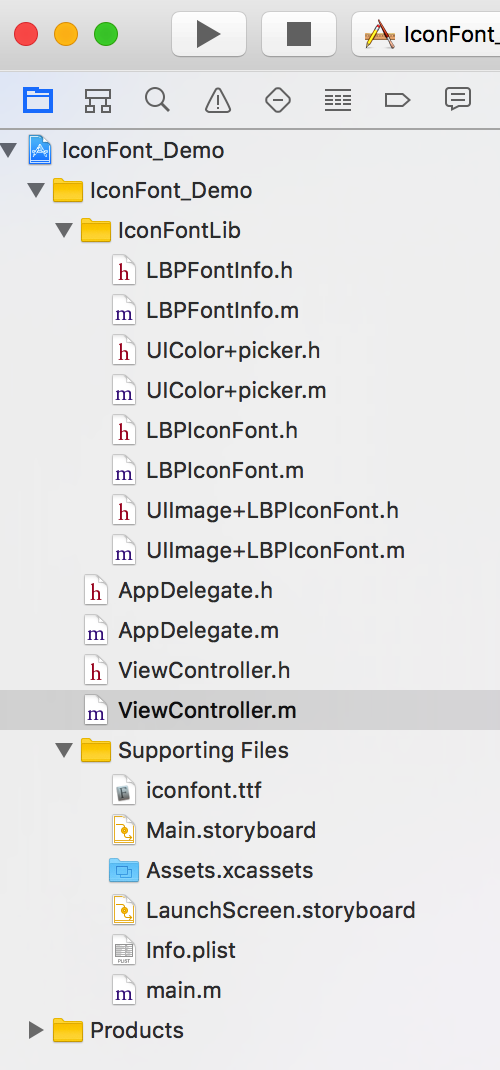
1. LBPFontInfo来封装字体信息
|
||
2. UIColor+picker根据十六进制字符串来设置颜色
|
||
3. LBPIconFont向系统中注册IconFont字体库,并使用
|
||
4. UIImage+LBPIconFont封装一个使用IconFont的Image分类
|
||
|
||
|
||
# [Demo地址](https://github.com/FantasticLBP/IconFont_Demo)
|
||
|
||
|