mirror of
https://github.com/NohamR/knowledge-kit.git
synced 2026-05-25 12:27:15 +00:00

62 lines
1.5 KiB
Markdown
62 lines
1.5 KiB
Markdown
|
||
# 调试工具安装
|
||
|
||
---
|
||
|
||
## 安装方式一
|
||
|
||
Vue-devtools 可以从 Chrome 商店直接下载安装,前提需要翻墙。
|
||
|
||
## 安装方式二
|
||
|
||
* 第一步:找到 Vue-devtools 的 github 地址,并将其 clone 到本地。
|
||
|
||
```
|
||
git clone https://github.com/vuejs/vue-devtools.git
|
||
```
|
||
|
||
* 第二步:安装项目所依赖的 npm 包
|
||
|
||
```
|
||
npm install
|
||
```
|
||
|
||
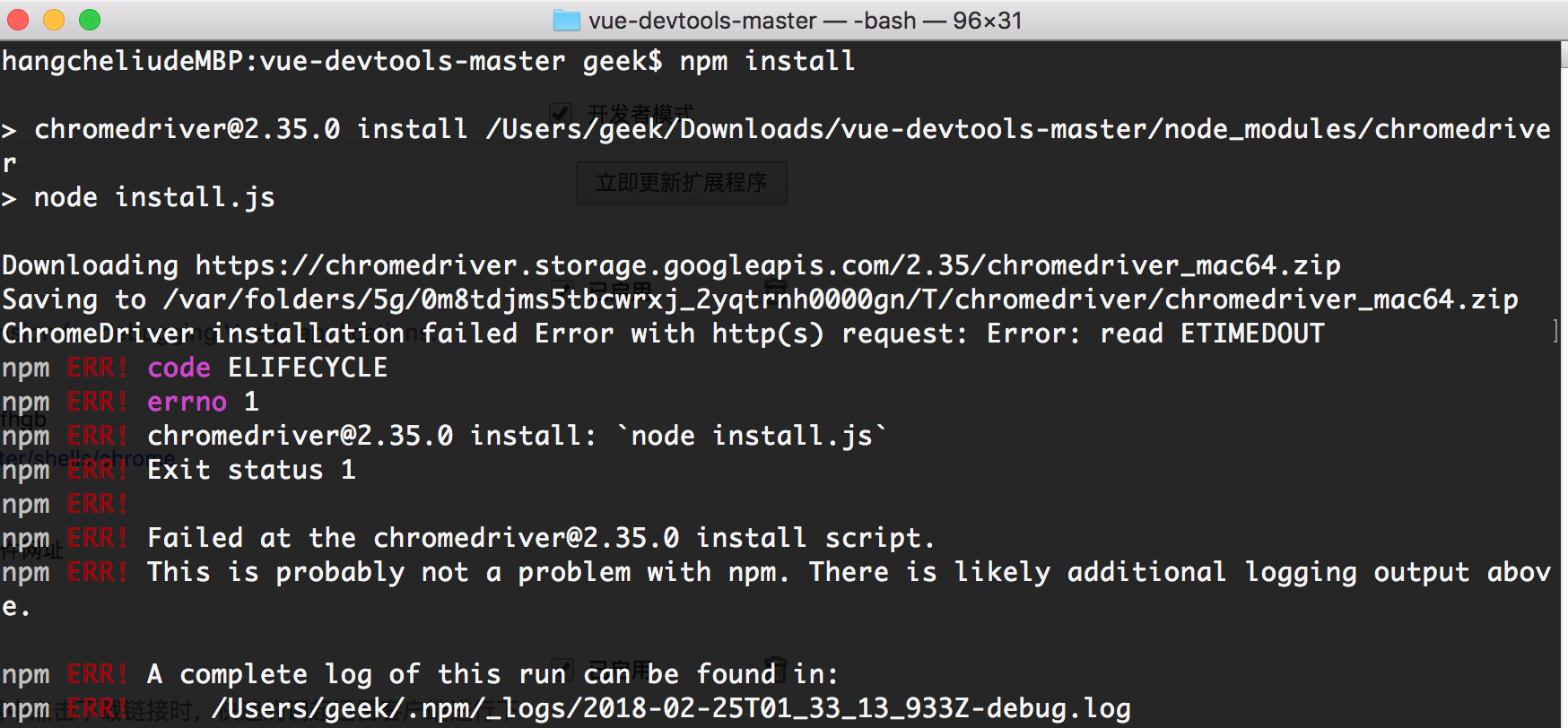
遇到的问题:
|
||
|
||
|
||
|
||
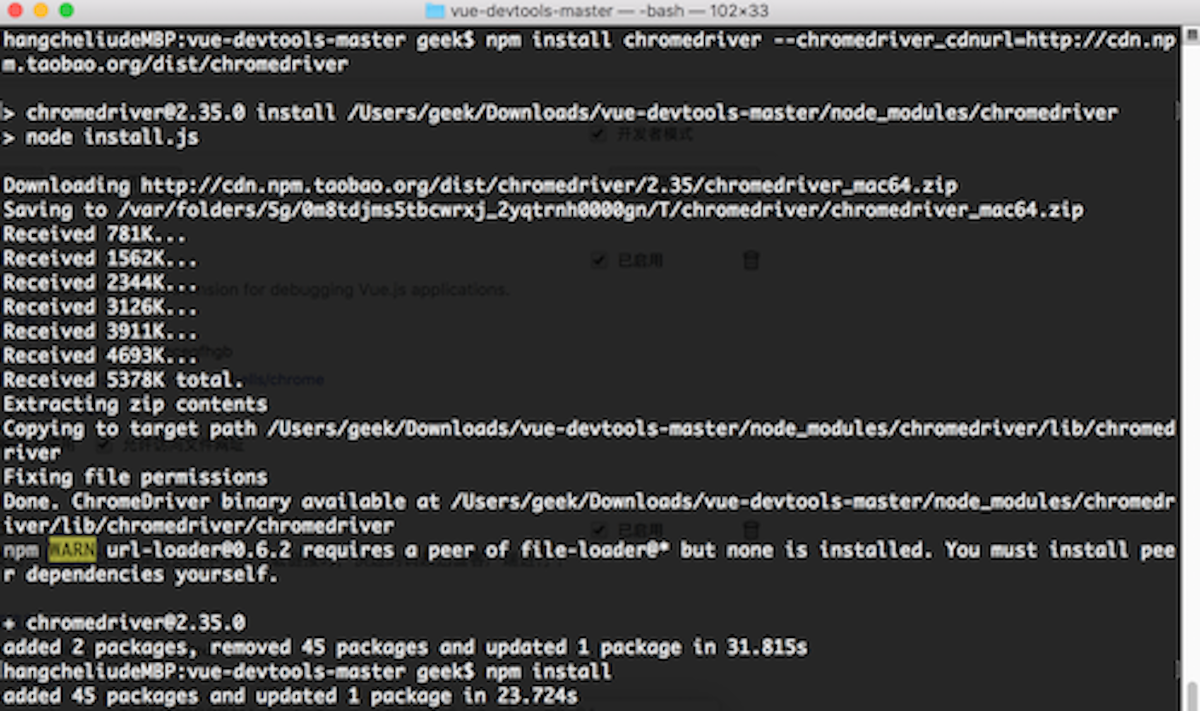
改用命令
|
||
|
||
```
|
||
npm install chromedriver --chromedriver_cdnurl=http://cdn.npm.taobao.org/dist/chromedriver
|
||
```
|
||
|
||
|
||
|
||
继续 npm install
|
||
|
||
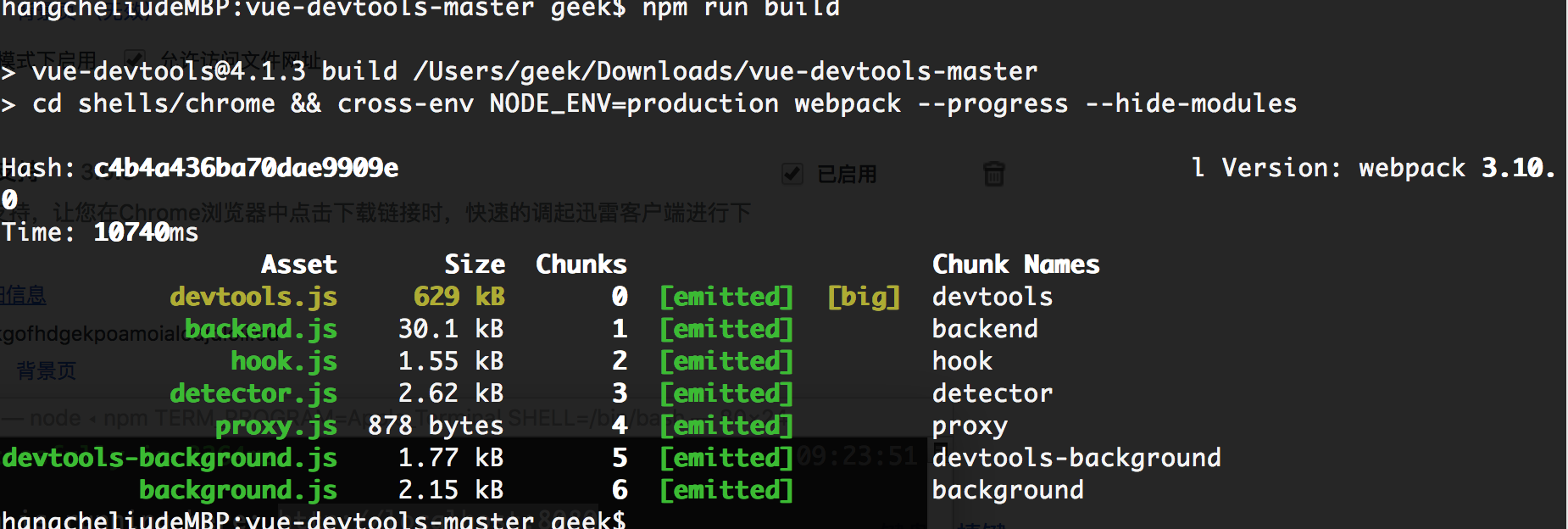
* 第三步:编译项目文件
|
||
|
||
```
|
||
npm run build
|
||
```
|
||
|
||
|
||
|
||
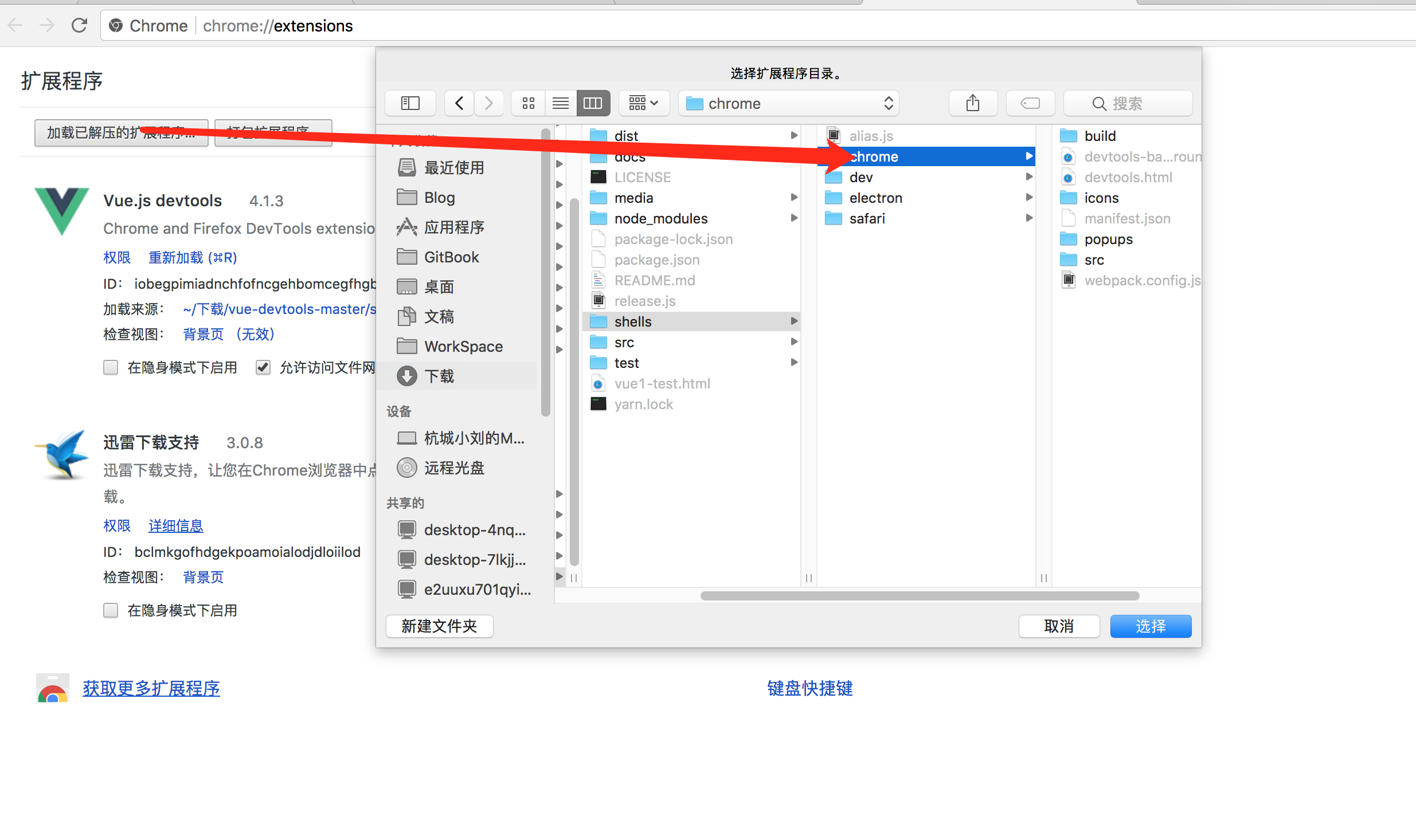
* 第四步:添加至 Chrome 浏览器的拓展
|
||
|
||
```
|
||
浏览器地址栏输入:chrome://extensions/
|
||
|
||
点击“加载已解压的拓展程序”选择本地 clone 下来的文件夹中的 shells -> chrome 文件夹(vue-devtools-master/shells/chrome )
|
||
```
|
||
|
||
|
||
|
||
* 第五步:重启浏览器
|
||
|
||
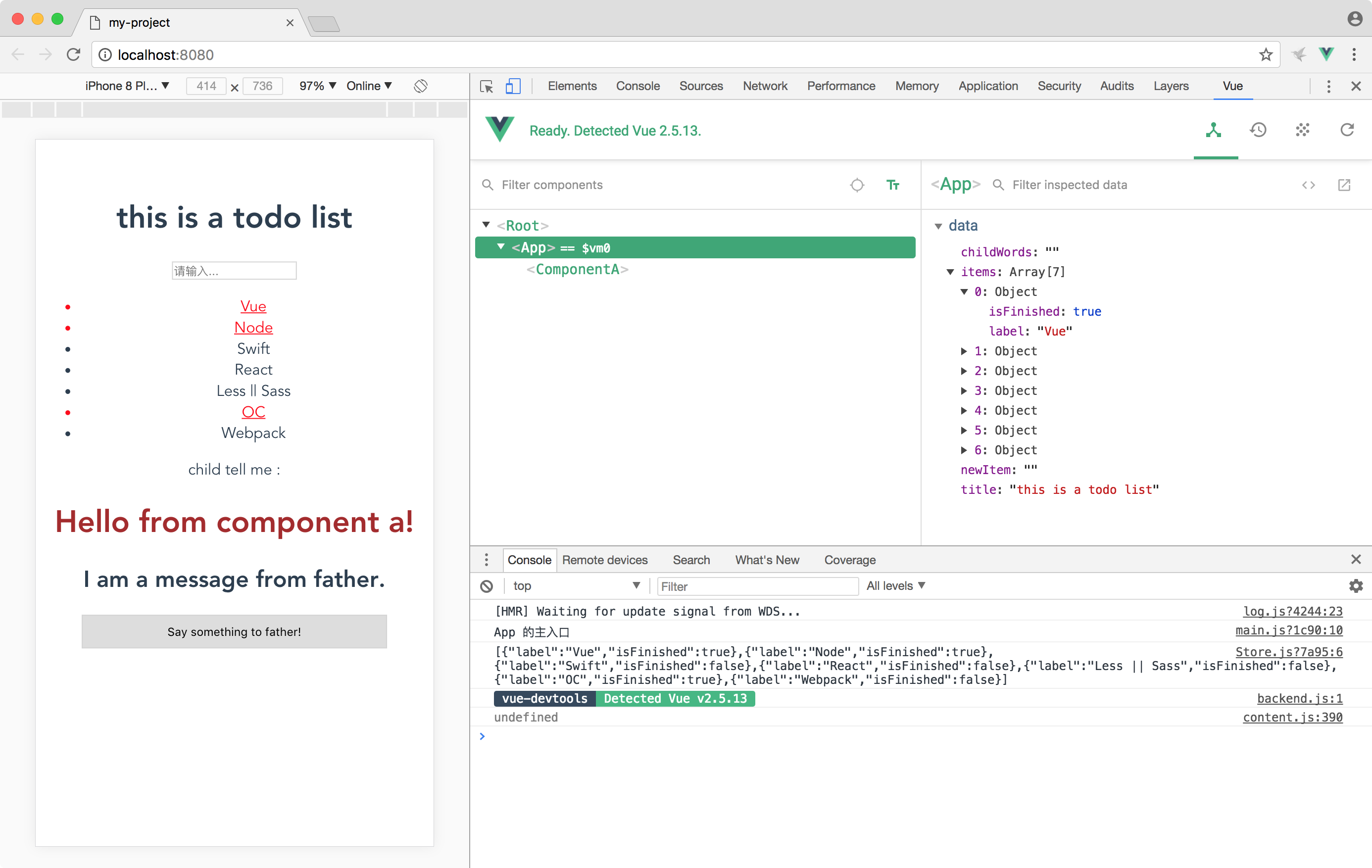
* 第六步:在浏览器中的调试 Vue 代码
|
||
|
||
|
||
|